
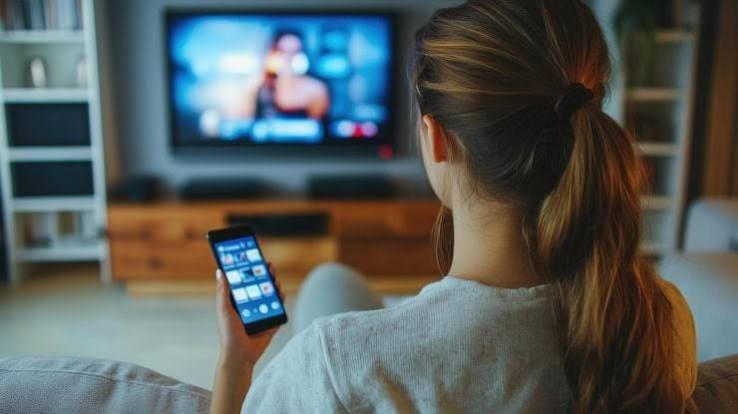
Yes, you can connect most Smart TVs to the internet using your phone’s mobile hotspot. This can be useful when your home Wi-Fi is unavailable or you need a temporary internet connection. The process is simple: switch on your phone’s hotspot, open your TV’s network settings and select your phone’s hotspot name. Enter the password to connect. However, streaming uses mobile data, and connection quality depends on your mobile signal and data plan. This guide explains how to connect your Smart TV to a phone hotspot, what to check before streaming and how to solve common connection problems.
Can a Smart TV Use a Phone’s Internet Connection?
Yes. Most modern Smart TVs have built-in Wi-Fi, allowing them to connect to a wireless internet network, including a mobile hotspot.
A phone hotspot works by sharing your mobile data connection with other devices. Once connected, your television can use the internet to access streaming platforms, watch online videos, browse supported apps and enjoy other connected features.
This option can be helpful if your home internet is temporarily unavailable, you have moved into a new property or you want to use your television somewhere without a fixed broadband connection.
However, remember that your TV will use your phone’s mobile data. Streaming high-quality video can consume a significant amount of data, so check your mobile plan before getting started.
How to Connect Your Smart TV to a Phone Hotspot
The setup process is straightforward and usually takes only a few minutes. The exact menu names may vary depending on your television brand and model.
Step 1: Turn On Your Phone’s Hotspot
Open the settings on your smartphone and find the Personal Hotspot or Mobile Hotspot option.
- On an iPhone, open Settings and select Personal Hotspot.
- On an Android phone, open Settings and look for Hotspot or Mobile Hotspot.
Switch the hotspot on and check the network name and password.
Step 2: Open Your TV’s Network Settings
Turn on your Smart TV and use the remote control to open its Settings menu. Find Network, Internet or Wi-Fi Settings.
Step 3: Select Your Phone’s Hotspot
Your television should display a list of available wireless networks. Find your phone’s hotspot name and select it.
Step 4: Enter the Password
Type in the hotspot password shown on your phone. Once the details are accepted, your television should connect to the internet.
Step 5: Test the Connection
Open a streaming app or another internet-based service to check whether everything is working correctly.
If the connection is successful, your Smart TV is ready to use your phone’s mobile internet.
What Should You Check Before Streaming?
Although a mobile hotspot can provide internet access, it may not always deliver the same experience as a home broadband connection.
Here are a few things worth checking:
Mobile Signal Strength: Your phone needs a reliable mobile signal. A weak signal can cause buffering, slow loading and interruptions.
Available Data: Streaming services can use a lot of mobile data, especially when watching HD or 4K content. Keep an eye on your data allowance.
Hotspot Compatibility: Some televisions work better with certain Wi-Fi frequency settings. If your TV cannot find your phone’s hotspot, try changing the hotspot band to 2.4GHz if your phone offers that option.
Phone Battery: Running a hotspot can drain your smartphone battery quickly. Keep your phone charged if you plan to stream for a longer period.
Connection Distance: Place your phone reasonably close to the television to help maintain a stable wireless connection.
Why Is Your Smart TV Not Connecting to Your Phone Hotspot?
Sometimes, your television may not recognise your phone’s hotspot or may connect without providing internet access. A few simple checks can help with Smart TV Connection Problems.
- Restart both devices: Turn off your television and phone, wait briefly and switch them back on.
- Check the password: Make sure you have entered the correct hotspot password.
- Confirm mobile data is active: Your phone needs an active mobile data connection to share internet access.
- Check hotspot settings: Try changing the hotspot frequency band if your TV does not detect the network.
- Move your phone closer: A better wireless signal can improve the connection.
- Reconnect to the network: Forget the saved hotspot on your television and connect again.
If the problem continues, the issue may involve your TV’s network settings, Wi-Fi capability or phone compatibility. These are common areas to check when troubleshooting a Smart TV Internet Connection.
Is a Phone Hotspot a Good Alternative to Home Wi-Fi?
A phone hotspot is useful for temporary internet access, but it may not be the best long-term solution for a household that regularly streams movies, watches online television or uses several connected devices.
A home Wi-Fi connection generally provides a more convenient option for everyday use, particularly when multiple people need internet access at the same time.
If your Smart TV regularly loses its connection, struggles to find your wireless network or has trouble accessing streaming services, it may be worth checking your home network and television settings.
For help with Smart TV Setup and home connectivity, you can contact Jason’s TV for assistance.
Final Thoughts
Connecting your Smart TV to a phone hotspot is a simple way to get online when your usual internet connection is unavailable. With the correct settings, a reliable mobile signal and enough data, you can continue enjoying your favourite streaming services.
If you need help with Smart TV Setup, television installation or home entertainment connections around Shepparton and nearby areas, Jason’s TV can help you get your television working as it should.
Frequently Asked Questions
Q1. Can every Smart TV connect to a phone hotspot?
A. Most Smart TVs with Wi-Fi support can connect to a compatible mobile hotspot.
Q2. Does connecting a Smart TV to a hotspot use mobile data?
A. Yes. Streaming, app updates and other online activities use your phone’s mobile data.
Q3. Why does my Smart TV keep disconnecting from my hotspot?
A. Weak mobile reception, battery-saving settings, hotspot limits or network compatibility can cause disconnections.
Q4. Can I watch Netflix using my phone hotspot?
A. Yes, provided your TV supports the app and your mobile connection is fast and stable enough.
Q5. Is a phone hotspot suitable for watching 4K content?
A. It can work with a sufficiently fast connection and enough data, but mobile data usage may be high.