
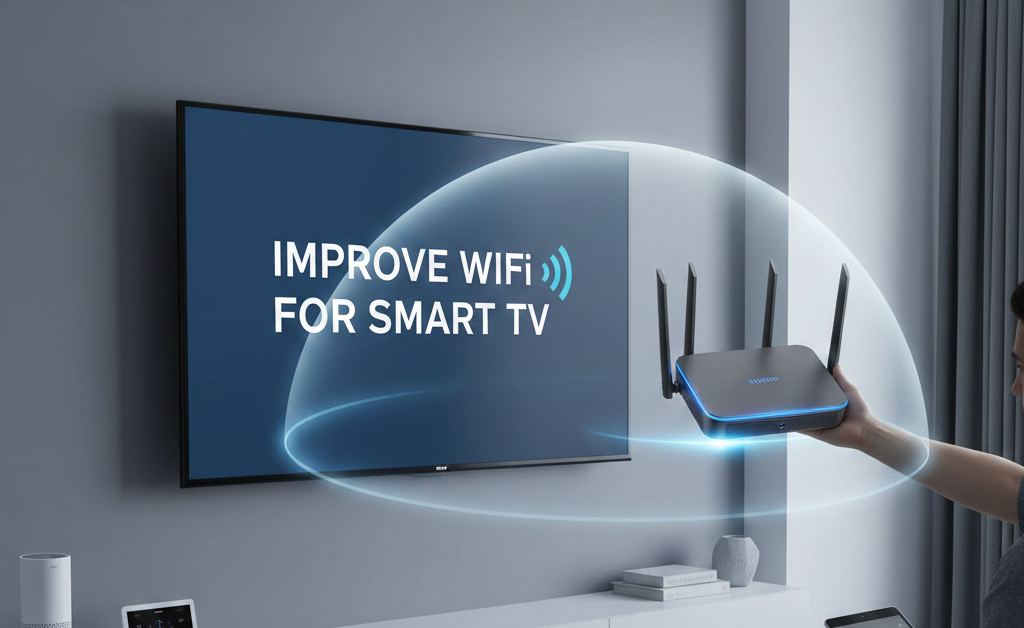
A weak or unstable connection can ruin streaming, gaming, and app performance on modern televisions. This guide explains how to improve your Smart TV’s Wi-Fi signal by addressing common causes, including router placement, signal interference, network congestion, and outdated equipment. It also covers practical fixes, including channel optimisation, wired alternatives, and network settings that improve stability. Whether your Smart TV buffers during peak hours or struggles to connect in certain rooms, these steps can help restore smoother performance without unnecessary upgrades or guesswork.
Why Smart TVs Are Sensitive to WiFi Issues
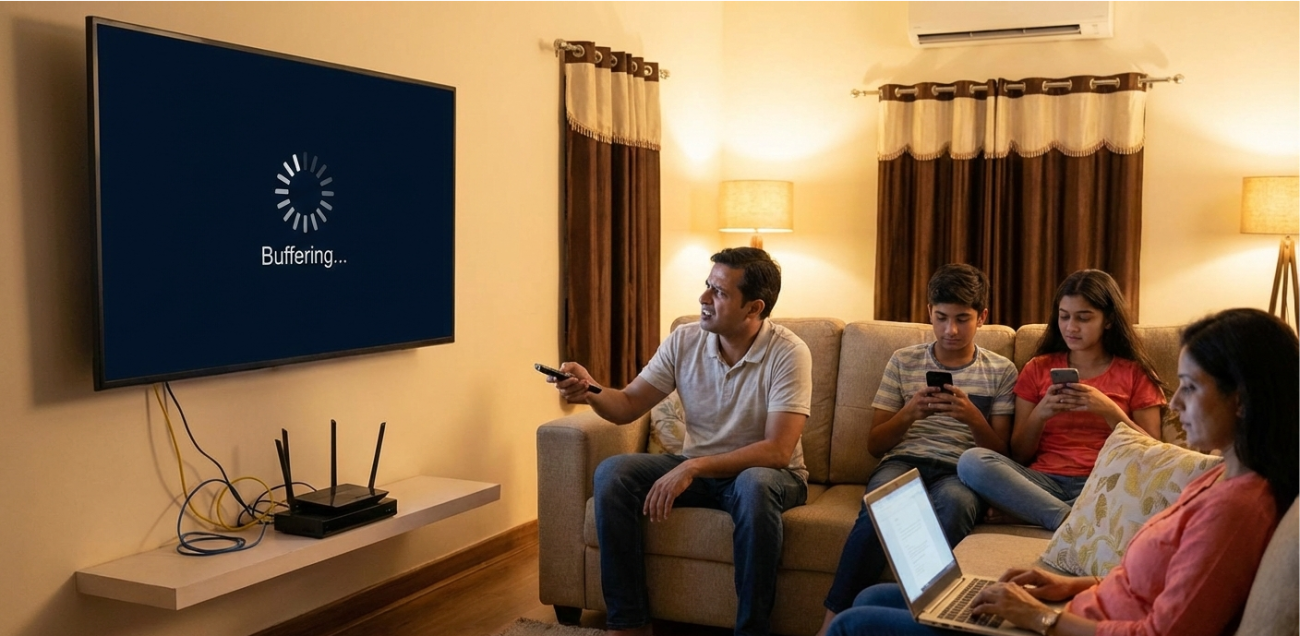
Smart TVs rely on a steady internet connection to stream high-resolution video, load apps, and receive updates. Unlike phones or laptops, TVs are usually fixed in one position, often far from the router or behind walls that block signal strength.
Streaming platforms also require consistent bandwidth. Even brief signal drops can cause buffering, pixelation, or app crashes.
Common Signs of Weak WiFi on a Smart TV
Before making changes, it helps to identify whether WiFi is truly the issue.
Typical symptoms include:
- Frequent buffering
- Low-resolution playback
- Apps failing to load
- Disconnections during streaming
- Delayed menu responses
If other devices work well while the TV struggles, signal placement or interference is often the cause.
Router Placement Makes a Big Difference
The router’s location directly affects Wi-Fi signal strength. TVs placed far from the router or behind thick walls often receive weaker signals.
Better placement tips:
- Position the router centrally in the home
- Avoid cupboards or enclosed cabinets
- Keep it elevated, not on the floor
- Maintain distance from metal objects
External networking references, such as Netgear home WiFi performance guides, explain how physical placement affects wireless strength.
Reduce Interference Near the TV
Many household devices interfere with WiFi signals, especially in living rooms where Smart TVs are installed.
Common interference sources:
- Bluetooth speakers
- Soundbars
- Microwaves
- Baby monitors
- Wireless security cameras
Switching the router to a less crowded channel often improves signal stability.
External references like ACMA WiFi interference guidance explain how household electronics disrupt wireless signals.
Switch to the Right WiFi Band
Most modern routers broadcast on two bands:
- 2.4 GHz – more extended range, slower speed
- 5 GHz – faster speed, shorter range
If your TV is close to the router, the 5 GHz band usually performs better. For longer distances, 2.4 GHz may be more reliable.
Some Smart TVs default to weaker bands unless manually adjusted.
Check Network Congestion During Peak Hours
Evening streaming places heavy demand on home networks. When multiple devices stream at once, bandwidth is shared.
High-usage devices include:
- Streaming boxes
- Gaming consoles
- Tablets and phones
- Cloud backups
- Smart home hubs
External tech guides, such as Dell WiFi performance tips, explain how peak-hour congestion affects home networks.
Update Your Router and TV Software
Outdated firmware can reduce performance or cause compatibility issues.
Recommended actions:
- Update router firmware
- Update Smart TV software
- Restart devices weekly
- Reset network settings if issues persist
Manufacturers often release performance fixes through updates.
Use a Wired Connection Where Possible
Ethernet connections provide the most stable internet connection for Smart TVs.
Benefits of Ethernet:
- No wireless interference
- Stable streaming
- Lower latency
- Consistent speeds
If running a cable isn’t practical, powerline adapters may be a useful alternative.
Upgrade Old Routers or Extenders
Older routers struggle to meet modern streaming demands, especially for 4K content.
Consider upgrading if:
- The router is over 5 years old
- Multiple devices disconnect regularly
- Signal drops through walls
- Streaming quality degrades at night
Mesh WiFi systems offer better coverage for larger homes.
Smart TV Location Matters
TVs placed in corners, basements, or behind entertainment units often receive weaker signals.
Helpful adjustments:
- Avoid mounting TVs behind metal brackets
- Keep WiFi antennas clear
- Avoid placing the TV near large mirrors
- Reduce obstructions between the router and the TV
If your TV is wall-mounted, proper positioning helps prevent signal blocking.
For mounting considerations, this related internal resource may help
Test and Monitor Your WiFi Performance
Run speed tests directly from your Smart TV, where available. Compare results with phone or laptop tests in the same room.
If speeds vary widely, interference or hardware limits may be involved.
When Professional Help Is Needed
If performance remains unstable after adjustments, the issue may involve:
- Signal loss through walls
- Router misconfiguration
- Hardware faults
- Electrical interference
Professional assessment can pinpoint problems quickly without trial-and-error upgrades.
Final Thoughts & Professional Support
Improving the WiFi signal for a Smart TV often involves small changes—better placement, reduced interference, or network optimisation. Stable connectivity helps support smooth streaming, clearer picture quality, and reliable app performance.
For households managing broader home setup needs, including entertainment system installation and signal reliability, Jason’s TV provides reliable services to help keep living spaces functional and comfortable.
FAQs
1. Why does my Smart TV buffer, but my phone doesn’t?
TVs often have weaker WiFi receivers and fixed placement.
2. Is Ethernet better than WiFi for Smart TVs?
Yes, Ethernet provides more stable and consistent performance.
3. Does router age affect Smart TV streaming?
Older routers struggle with modern streaming requirements.
4. Can walls reduce the WiFi signal to a TV?
Yes, brick, concrete, and metal significantly weaken signals.
5. Should I use a WiFi extender for my TV?
Yes, if the router is far away or the signal drops frequently.