
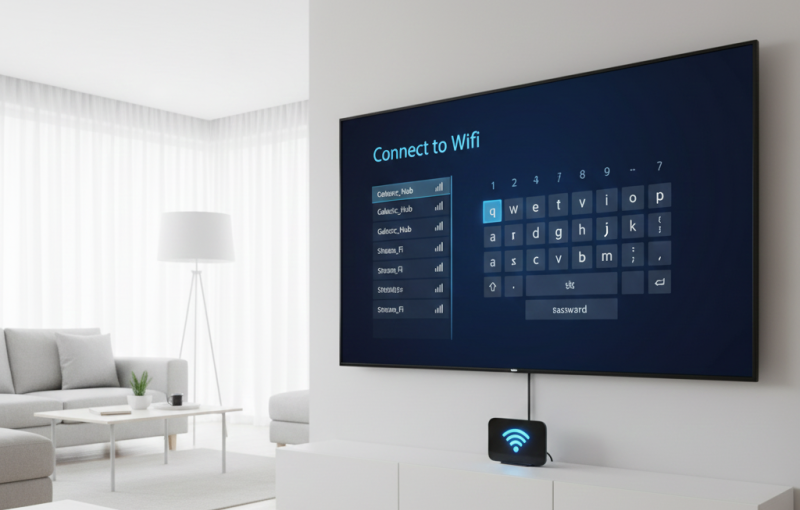
Losing or breaking a remote does not mean your television must stay offline. This guide explains how to connect a Smart TV to WiFi without a remote using simple, practical methods that work across most TV brands. It covers alternative control options such as physical TV buttons, USB keyboards or mice, mobile apps, Ethernet connections, and temporary network setups. Whether your remote is missing, damaged, or unresponsive, these solutions help restore internet access so you can stream content, update apps, and use innovative features without frustration.
Why WiFi Access Matters for Smart TVs
Smart TVs rely on internet access to stream content, update apps, enable voice features, and receive system updates. Without WiFi, many functions stop working or become limited.
When a remote goes missing or stops responding, connecting the TV to WiFi may seem impossible. Fortunately, most Smart TVs still offer alternative control options that allow access to network settings.
Check for Physical Buttons on the TV
Many Smart TVs include built-in control buttons hidden under the frame or behind the screen.
Common button locations
- Under the TV bezel
- On the back panel
- Along the side edge
These buttons usually allow navigation through menus, input selection, and basic confirmation actions. While limited, they are often enough to reach WiFi settings.
Using a USB Keyboard or Mouse
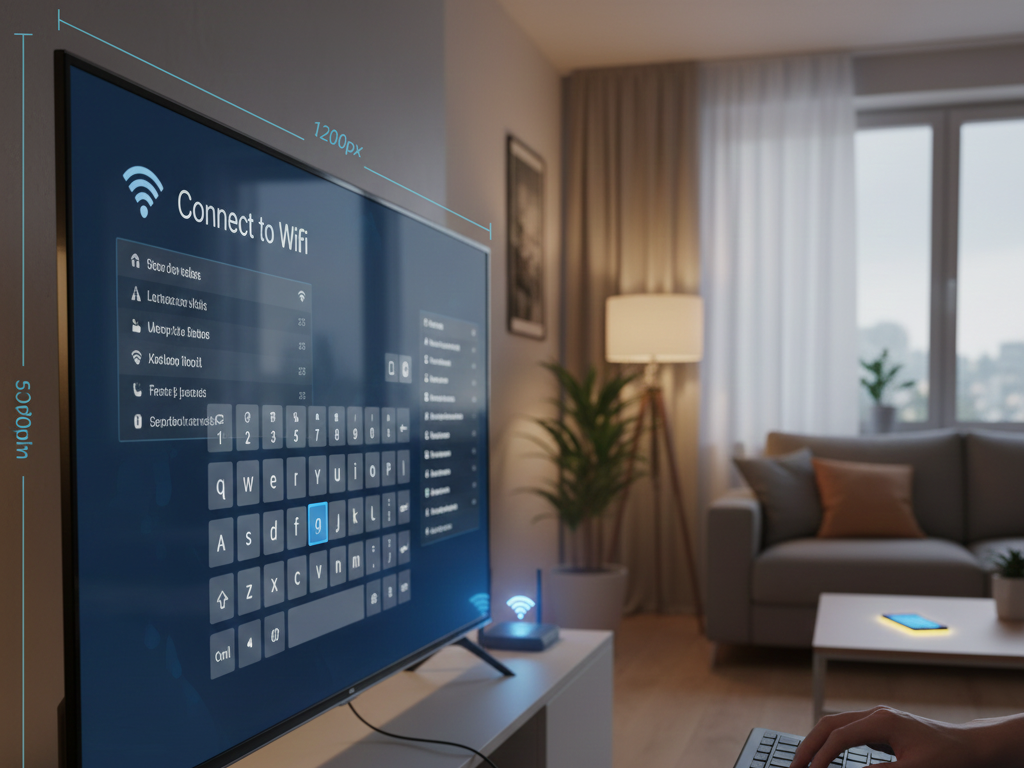
One of the easiest solutions is connecting a USB keyboard or mouse directly to the TV.
How it works
- Plug a USB keyboard or mouse into the TV’s USB port
- Navigate the menu using arrow keys or the mouse
- Open network settings and select WiFi
Most Smart TVs support USB input automatically, making this a reliable method.
External setup guides such as CNET Smart TV connection tips explain how USB peripherals act as remote replacements.
Connect Using a Mobile App
Many TV brands offer official mobile apps that turn your phone into a remote control.
Requirements
- TV and phone must be on the same network (if previously connected)
- Bluetooth may need to be enabled
Apps allow full navigation, text entry for WiFi passwords, and access to settings.
External support pages like Samsung SmartThings TV control guidance provide app-based connection instructions.
Use an Ethernet Cable as a Temporary Fix
If WiFi setup is blocked, a wired connection can restore access.
Steps
- Connect an Ethernet cable from router to TV
- TV connects automatically
- Install remote app or update settings
Once connected, you can switch back to WiFi later.
Using HDMI-CEC with Another Remote
HDMI-CEC allows some TV functions to be controlled using another device’s remote, such as:
- Streaming box remote
- Game console controller
If HDMI-CEC is enabled, this can provide basic navigation.
Reset the TV (Last Option)
A factory reset may restore default settings, including pairing options.
Important notes
- All apps and data will be removed
- Network settings will reset
- Use only if other options fail
This method varies by brand and model.
Common Issues and Troubleshooting
Even with alternatives, users may face issues.
Typical problems
- USB devices not recognised
- App unable to detect TV
- Buttons too limited for navigation
In these cases, professional assistance may be required.
When TV Placement Affects Connectivity
Wall-mounted TVs can sometimes block signal access or ports.
If your TV is mounted and difficult to reach, proper positioning matters. You may find this helpful for placement considerations: TV Mounting in Shepparton.
Digital Antennas and Smart TV Setup
While WiFi handles streaming, antenna setup still matters for free-to-air channels.
For signal clarity and proper installation, see Digital TV Antennas in Shepparton.
External broadcasting references such as Freeview Australia setup guidance explain how antenna and internet services work together.
Preventing This Issue in the Future
To avoid future problems:
- Keep a spare universal remote
- Enable mobile app access early
- Label remotes for each TV
- Store batteries nearby
These steps reduce downtime if a remote fails again.
Final Thoughts & Professional Help
Knowing how to connect a Smart TV to WiFi without a remote saves time and avoids unnecessary replacement costs. While many situations can be resolved using keyboards, apps, or temporary wired connections, some setups require expert handling—especially when TVs are wall-mounted or integrated into home systems.
For reliable assistance with Smart TV setup, mounting, antenna services, and troubleshooting, contact Jason’s TV today.
FAQs
1. Can I connect my Smart TV to WiFi without any remote at all?
Yes, using USB devices, mobile apps, or Ethernet connections.
2. Will any USB keyboard work on a Smart TV?
Most standard USB keyboards are supported.
3. Do mobile remote apps work without WiFi?
Some require Bluetooth or prior network connection.
4. Is Ethernet faster than WiFi for TVs?
Yes, wired connections are often more stable.
5. Should I replace the remote or use alternatives?
Replacing the remote is best long-term, but alternatives work well temporarily.