
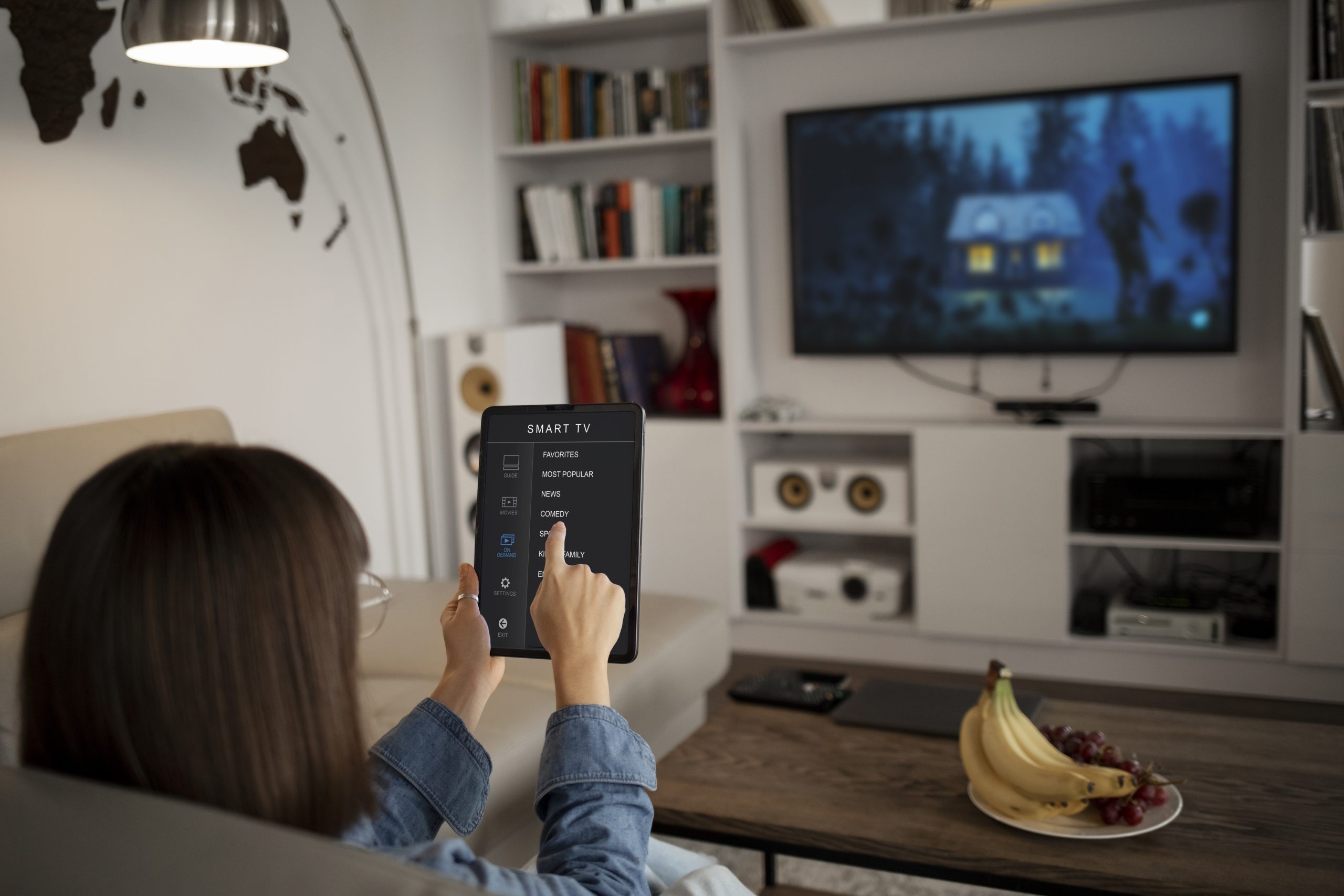
When a Smart TV’s Wi-Fi connection repeatedly disconnects, simple streaming can become frustrating. Many households experience dropped connections, buffering, or apps that won’t load, even when other devices are working fine. This guide explains why a Smart TV keeps losing its Wi-Fi connection, covering signal strength, router settings, interference, outdated software, and placement issues. It also outlines practical steps to fix Smart TV WiFi issues without technical guesswork. By understanding common Smart TV internet connection issues and knowing when to seek professional help, homeowners can restore stable streaming and prevent recurring dropouts.
Why Smart TVs Lose WiFi More Often Than Other Devices
A Smart TV connects to the internet differently from phones or laptops. Most TVs use compact internal WiFi antennas that are less powerful and more sensitive to interference. This makes them prone to disconnections, especially in homes with thick walls, multiple devices, or older routers.
Streaming places continuous demand on the connection. When the signal weakens even briefly, the TV may disconnect from WiFi instead of recovering automatically.
Weak Signal Strength at the TV Location
One of the most common reasons a Smart TV loses its Wi-Fi connection is being too far from the router. TVs are often installed against solid walls, inside cabinets, or mounted far from the modem.
WiFi signals struggle to pass through:
- Brick or concrete walls
- Metal wall mounts
- Large furniture
- Appliances behind the TV
Even if your phone works nearby, the TV may still struggle due to antenna limitations.
Router Placement and Network Congestion
Router position plays a major role in Smart TV network troubleshooting. Routers placed low, inside cupboards, or near electrical equipment often deliver uneven coverage.
Homes with multiple connected devices may also face congestion during peak hours. Streaming services require steady bandwidth, and when several users are gaming, browsing, or streaming at once, the TV may disconnect.
Guidance from Rsinc.com explains how household electronics and building materials interfere with wireless signals, reducing reliability across connected devices.
Outdated Smart TV Software or Firmware
Software updates are often overlooked. Older firmware can cause Smart TV internet connection problems such as:
- Random WiFi dropouts
- Apps failing to load
- Inconsistent network detection
Manufacturers release updates to improve network stability, security, and app compatibility. If updates are disabled or ignored, connection issues may continue even with a strong signal.
Support resources from Samsung Support explain how firmware updates improve WiFi stability on Smart TVs.
Router Settings That Conflict with Smart TVs
Some router configurations can interfere with TV connectivity, including:
- Automatic channel switching
- Mixed WiFi modes (2.4GHz and 5GHz combined)
- Outdated security protocols
Many Smart TVs perform better on a stable 2.4GHz connection, especially when distance is involved. Automatic switching between bands may cause the TV to disconnect unexpectedly.
Consumer networking advice from CNET highlights how router settings and band selection affect streaming device stability.
Interference from Other Electronics

Smart TVs are often surrounded by devices that generate interference:
- Soundbars
- Game consoles
- Streaming boxes
- Wireless speakers
Placing these too close to the TV or router can weaken the signal. Even power boards and HDMI cables can contribute to interference when poorly shielded.
Cached Network Data Causing Dropouts
Smart TVs store temporary network data. Over time, corrupted cache files can cause the TV to misinterpret network details, resulting in repeated disconnects.
Simple steps such as:
- Restarting the TV
- Power cycling the router
- Forgetting and reconnecting to WiFi
can often resolve short-term issues.
When Ethernet Works Better Than WiFi
If your Smart TV is close to the router, a wired Ethernet connection may provide the most stable experience. Wired connections eliminate interference and bandwidth drops entirely.
However, wall-mounted TVs or rooms far from the router may require signal optimisation rather than cabling.
How TV Mounting Affects WiFi Performance
Wall mounting improves viewing but can affect connectivity if not planned. Metal brackets, recessed cavities, and wall thickness can block signals.
Professional TV Mounting in Shepparton Coast services can position TVs to avoid signal interference while maintaining a clean installation.
Internet vs Antenna Confusion on Smart TVs
Some Smart TVs switch between internet streaming and broadcast channels. If the antenna setup is unstable, the TV may appear to disconnect even though the WiFi is working.
Reliable Digital TV Antennas in Shepparton installations help avoid signal confusion between broadcast and streaming services.
When to Call a Professional
If you have:
- Strong WiFi on other devices
- Updated TV software
- Correct router settings
The Smart TV not connecting to WiFi issue persists; a professional diagnosis is recommended.
Hardware faults, internal WiFi module failure, or installation-related signal blockage often require expert assessment.
Final Thoughts: Get Reliable Streaming with Expert Help
If your Smart TV’s WiFi disconnecting problem keeps returning, it may be time for expert support. Jason’s TV provides practical solutions that improve connectivity, optimise TV placement, and resolve antenna or installation issues that affect streaming reliability.
For dependable setup, signal assessment, and long-term viewing stability, contact Jason’s TV today.
FAQs
1. Why does my Smart TV disconnect from WiFi but my phone does not?
Smart TVs have weaker WiFi antennas and are more sensitive to interference and distance.
2. Should I use 2.4GHz or 5GHz for my Smart TV?
2.4GHz is often more stable over distance, while 5GHz works best at close range.
3. Can TV mounting affect WiFi performance?
Yes. Metal brackets and wall placement can block signals if not planned correctly.
4. How often should I update my Smart TV software?
Check for updates every few months or enable automatic updates if available.
5. When should I seek professional help for WiFi issues?
If disconnections continue after basic fixes, expert inspection is recommended.