
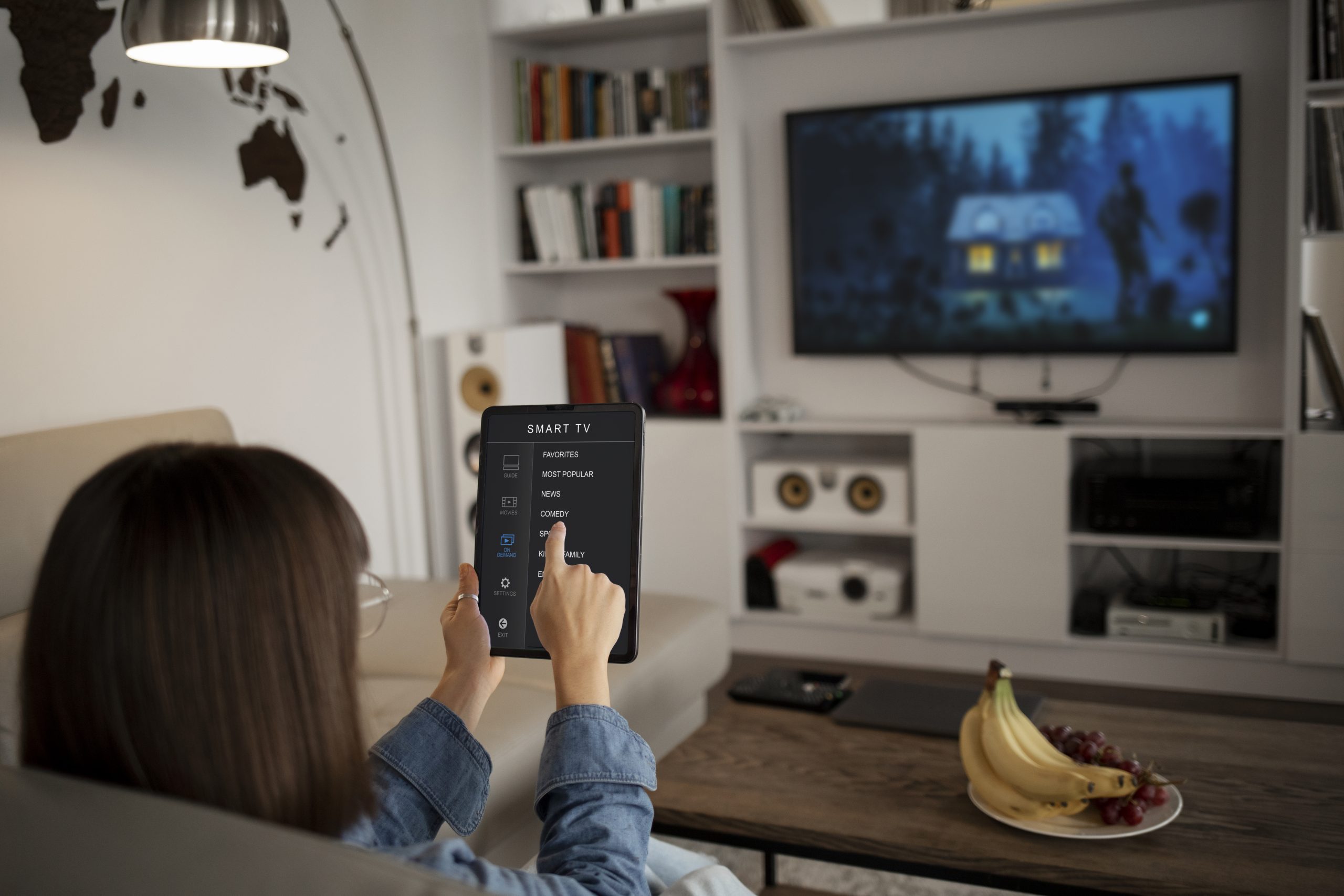
Is your Smart TV constantly disconnecting from WiFi, interrupting your favourite shows or causing streaming apps to buffer? A television that keeps losing its internet connection can be frustrating, especially when other devices in your home appear to work perfectly.
If you’re wondering, “Why does my TV keep disconnecting from the internet?”, the problem could be related to a weak wireless signal, router settings, outdated TV software or an unstable home network.
In this guide, we’ll explain nine practical ways to fix Smart TV WiFi connection problems, when to check your router and when professional assistance may be helpful. Homeowners looking for Smart TV Set Up Congupna or Home WiFi Setup and Repair Congupna can also learn how to improve their home network for more reliable streaming.
Why Does My Smart TV Keep Disconnecting From the Internet?
There are several reasons your TV may repeatedly lose its internet connection. Identifying the cause can help you choose the right solution instead of repeatedly reconnecting your television.
Common causes include:
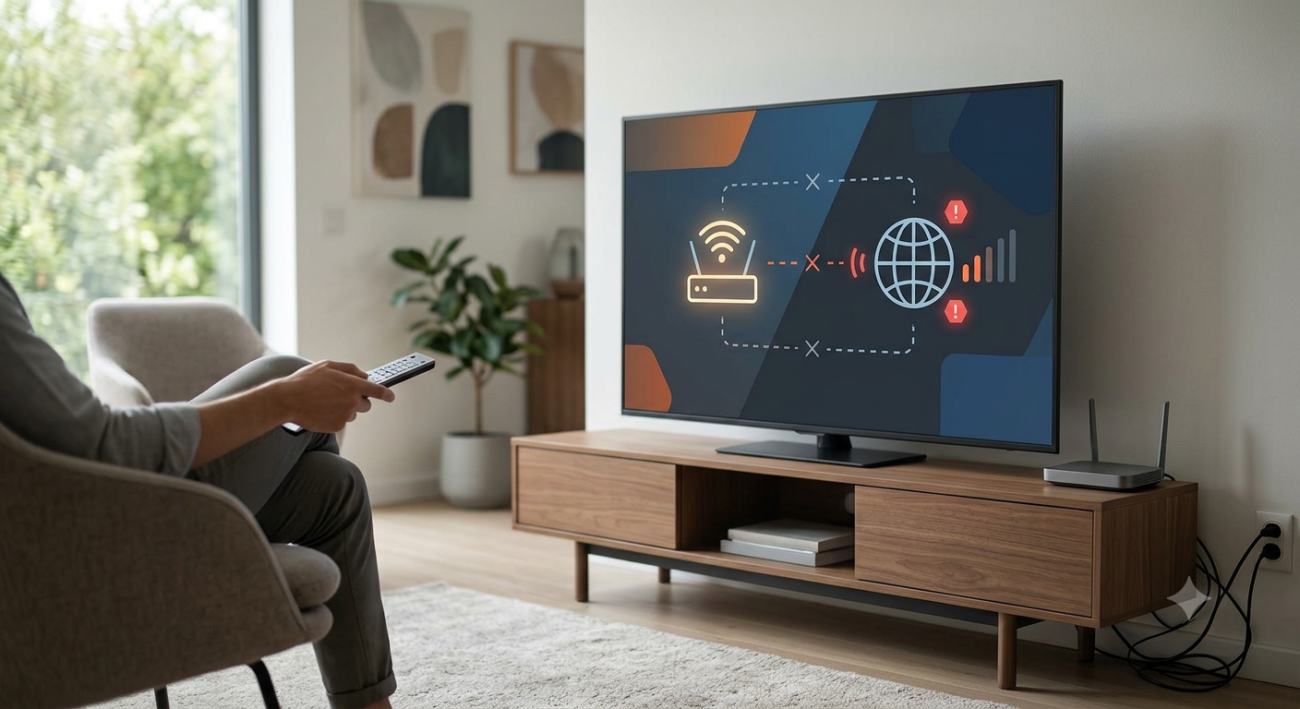
- Weak WiFi signal: Your TV may be too far from the router or separated by thick walls.
- Router problems: An overloaded, outdated or malfunctioning router can interrupt connectivity.
- Wireless interference: Nearby networks and electronic devices can affect WiFi performance.
- Software issues: Outdated TV firmware or streaming apps may cause connection problems.
- Incorrect network settings: Saved passwords, IP address conflicts or DNS settings may prevent a stable connection.
- Internet service interruptions: Your broadband connection may be dropping out even when your home WiFi network remains visible.
If your TV keeps disconnecting from WiFi while other devices work normally, start by troubleshooting the television. If multiple devices lose their connection, investigate the router or internet service first.
9 Ways to Fix a TV That Keeps Disconnecting From WiFi
1. Restart Your TV and WiFi Router
A simple restart can resolve temporary network errors.
Turn off your television and unplug it from the power outlet. Restart your router using its normal power procedure, allowing it to reconnect to the internet. Then reconnect your TV to WiFi.
Wait until the router has fully restarted before testing your streaming apps.
If your TV continues disconnecting after a restart, move on to the next troubleshooting step.
2. Check Your WiFi Signal Strength
A weak wireless signal is one of the most common reasons a Smart TV keeps losing its internet connection.
If your television is located in a bedroom, an upstairs room or behind several walls, the WiFi signal may be unreliable.
Try these steps:
- Move the router to a more central, open location if practical.
- Keep the router away from large metal objects and enclosed cabinets.
- Test your TV closer to the router if possible.
- Consider a suitable WiFi extender or mesh WiFi system if coverage is poor.
If the signal remains weak in certain rooms, professional Home WiFi Setup and Repair Congupna may help identify coverage gaps and improve wireless performance.
3. Forget the WiFi Network and Reconnect
Your television may have trouble reconnecting because of an incorrect saved password or a temporary network configuration issue.
To reconnect:
- Open your TV’s Settings menu.
- Select Network or Network Settings.
- Choose your connected WiFi network.
- Select Forget Network or Disconnect, depending on your model.
- Search for your network again and enter the correct password.
Menu names vary between Samsung, LG, Sony, Hisense and other television brands.
Once connected, test your TV for several minutes to see whether the problem returns.
4. Check Your Router and Internet Connection
If your TV keeps disconnecting from the internet, check whether the problem affects your other devices.
Connect a phone or laptop to the same WiFi network and test a few websites or streaming services.
If several devices experience dropouts, the issue may involve the router, broadband service or home network configuration.
If the router repeatedly loses connection, overheats or requires frequent restarts, it may need further investigation. A Wifi Router Repair Congupna service can help assess router-related issues where available, determine whether replacement is appropriate and identify other network faults.
Remember that a router can broadcast WiFi successfully even when its internet connection is unavailable.
5. Update Your Smart TV Software
Outdated television software can sometimes cause network compatibility or connectivity problems.
Open your TV’s settings and look for Software Update, System Update or Firmware Update. Follow the manufacturer’s instructions to install any available update.
If your TV cannot remain connected long enough to download an update, check whether the manufacturer supports updating through USB or using another approved method.
Avoid interrupting the update process, as doing so may cause additional problems.
6. Check Your TV’s WiFi Frequency
Many modern routers offer both 2.4 GHz and 5 GHz WiFi networks.
The 2.4 GHz band generally reaches farther and may work better through walls, while 5 GHz can offer higher speeds over shorter distances.
If your TV frequently disconnects, try the other WiFi band if your router and television support it.
Keep these points in mind:
- Use 2.4 GHz when range and wall penetration are the main concerns.
- Try 5 GHz when the TV is relatively close to the router and the signal is strong.
- Check your router settings if the TV cannot find the expected network.
- Avoid changing advanced router settings without understanding their effects.
The best option depends on your home layout, equipment and surrounding wireless interference.
7. Check Your TV’s Network Settings
Incorrect network configuration can sometimes prevent a television from maintaining a reliable internet connection.
Open the network settings on your TV and check whether it has successfully connected to the router.
If the TV reports a connection but streaming apps still fail, test the internet connection and follow the manufacturer’s network troubleshooting instructions.
Some devices allow you to reset network settings or configure DNS settings. Use these options carefully and record the original configuration before making advanced changes.
If you are unsure which settings to change, professional assistance may prevent unnecessary disruption to your home network.
8. Check Your Streaming Apps and Internet Speed
Sometimes the problem is not your TV’s WiFi connection at all.
A particular streaming app may experience an outage, require an update or have a temporary software problem.
Try opening another app or testing a different streaming service. If only one app fails, check for app updates and follow its troubleshooting instructions.
If every streaming service buffers, check your internet connection and whether other devices are using significant bandwidth.
A slow broadband connection, network congestion or repeated internet dropouts can all affect streaming quality.
9. Consider Professional Home WiFi Troubleshooting
If your TV continues disconnecting after trying these fixes, the problem may require a closer look at your home network.
Possible causes include a failing router, poor WiFi coverage, interference, incorrect network configuration or an unstable internet service.
For households seeking Internet Repair Service Congupna, a professional assessment can help determine whether the fault originates with the television, router, internal WiFi coverage or broadband connection.
Jason’s TV can help customers explore relevant TV and connectivity services in its service area. Confirm the availability of specific repair services before booking.
When Should You Get Professional WiFi Help?
Consider professional troubleshooting if:
- Your TV disconnects several times a day.
- Multiple devices experience regular WiFi dropouts.
- Your router repeatedly loses its internet connection.
- WiFi coverage is poor in rooms where you use your television.
- Streaming keeps buffering despite a strong signal.
- You have tried basic troubleshooting without lasting improvement.
A proper assessment can help identify whether you need better router placement, improved WiFi coverage, a router replacement or assistance with your internet service.
Smart TV Set Up Congupna: Getting Your Television Connected Properly
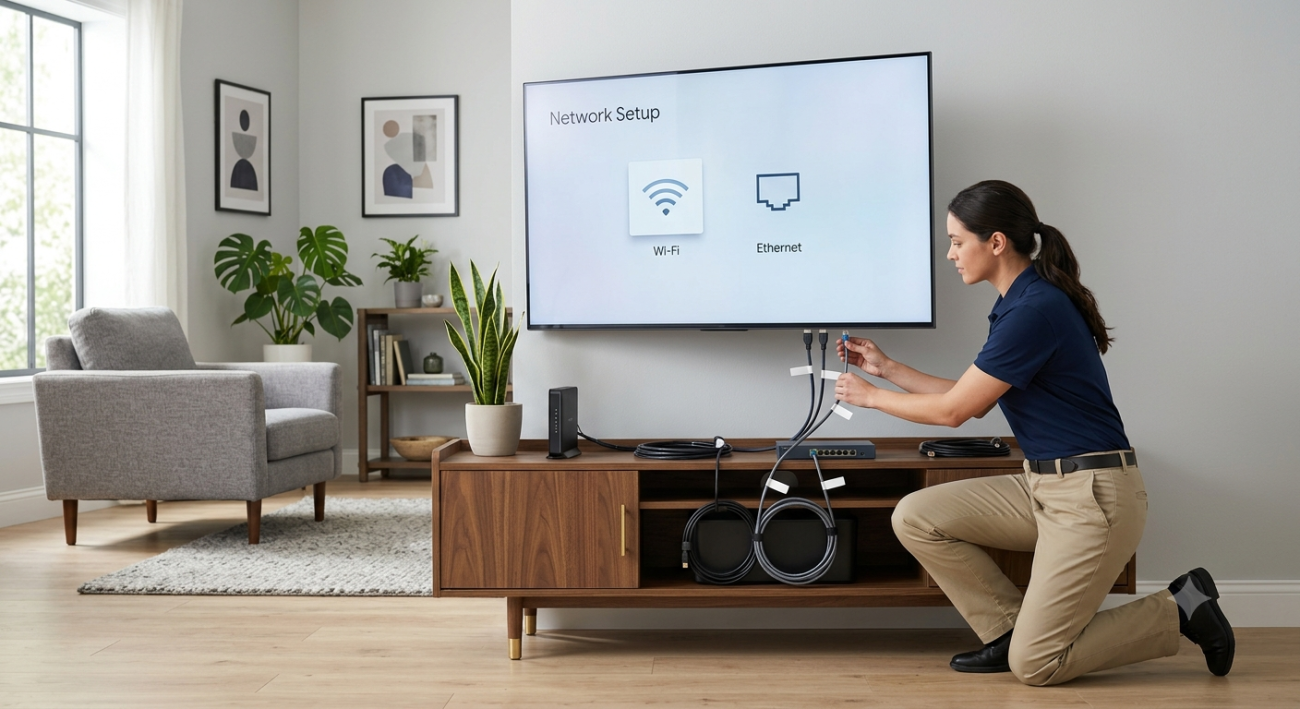
A reliable Smart TV setup involves more than connecting the power cable and entering a WiFi password.
Your television needs a stable network connection, suitable software settings and correctly configured streaming applications. Router placement and wireless coverage can also make a significant difference to everyday performance.
If you are setting up a new television or experiencing ongoing connectivity problems, Smart TV Set Up Congupna and Home WiFi Setup and Repair Congupna are relevant local service searches to consider when looking for assistance.
The right setup can help reduce avoidable connection issues and make streaming more convenient.
Congupna Internet Experts: Improving Your Home Connectivity
Reliable home internet helps you stream entertainment, use connected devices and stay productive without constant interruptions.
When your TV keeps disconnecting from WiFi, it is worth checking the entire connection rather than assuming the television is faulty. A router issue, weak signal or broadband interruption can create similar symptoms.
If you need help identifying the cause, look for an experienced local provider that can assess your home network and recommend an appropriate solution.
For residents searching for Congupna Internet Experts, Jason’s TV is worth considering for relevant services within its confirmed service area. Contact the business to discuss your symptoms and confirm whether the required service is available at your address.
Final Thoughts
A Smart TV that keeps disconnecting from WiFi does not always need replacing. In many cases, restarting your equipment, improving signal strength, updating software or correcting network settings can restore a more stable connection.
If the problem continues, investigate the router and wider home network instead of repeatedly reconnecting the television.
For relevant TV setup congupna, WiFi troubleshooting congupna and connectivity assistance, contact Jason’s TV to discuss your requirements and confirm service availability in Congupna.
Need help with your TV or home WiFi? Visit Jason’s TV to learn more about its services and enquire about assistance in your area.
Frequently Asked Questions
Q1. Why does my TV keep disconnecting from the internet?
A. Common causes include weak WiFi signals, router problems, outdated TV software, wireless interference and broadband dropouts. Testing another device on the same network can help narrow down the cause.
Q2. Why does my TV keep disconnecting from WiFi but my phone works?
A. Your TV may have weaker WiFi reception, outdated software or a network compatibility issue. Test the television closer to the router and check whether its software and network settings are up to date.
Q3.Can a faulty router cause a Smart TV to disconnect?
A. Yes. Router faults, overheating, outdated firmware and unstable connections can cause repeated dropouts. If several devices experience the same issue, investigate the router and internet connection.
Q4. Will resetting my TV fix WiFi problems?
A. It may resolve certain software or network configuration problems, but it is not always necessary. Try restarting the TV, reconnecting to WiFi and checking the router before performing a factory reset.